
 November 3, 2008
This has been a very popular question for support lately: “I have created an Extender window, how do I add data from it to my SmartLists?” Extender includes the ability to add fields to both existing SmartLists or ones created in SmartList Builder. Below is an example using GP 9.0. [Click on any of the screen shots to enlarge them.]
I wanted to track some additional data about customers so I created an Extender window called Customer Additional Information and linked it to the Customer Maintenance window:
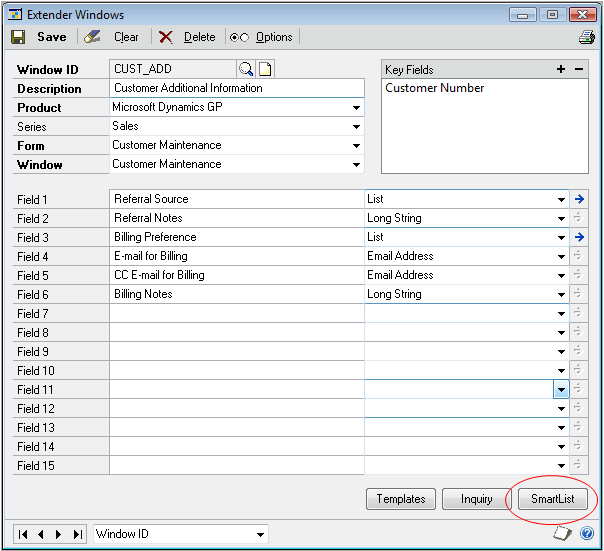
On the bottom of the Extender Windows window there is a button for SmartList, clicking that brings up the SmartList Integrations window:
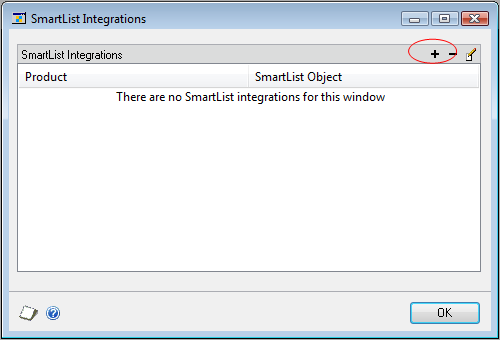
Click the + to bring up the Add/Edit SmartList Integration window. For SmartList Product – choose Microsoft Dynamics GP if you want to add to an out-of-the-box SmartList or choose SmartList Builder if adding to a SmartList you’ve created. Under SmartList Object choose from the list of available SmartLists. [Note: not every SmartList object will be available, so if what you want is not on the list, you’ll need to use SmartList Builder first to create a new SmartList.]
The Key Fields from your Extender screen will be duplicated here, map them to the available SmartList Fields. In my example, I would like to add this data to the Customers SmartList, and I am mapping my Customer Number Key Field to the Customer Number field on that SmartList:
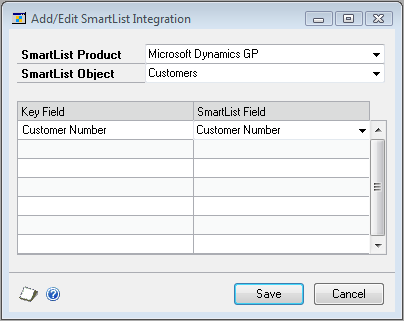
Click Save on the Add/Edit SmartList Integration window, OK on the SmartList Integrations window and Save on the Extender Windows window to finish.
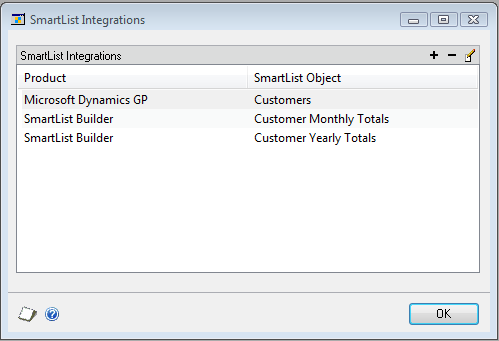
You can link this Extender screen to multiple SmartLists, whether built-in or created in SmartList Builder:
Now, when you go to SmartList the columns from your Extender window are available to be added:
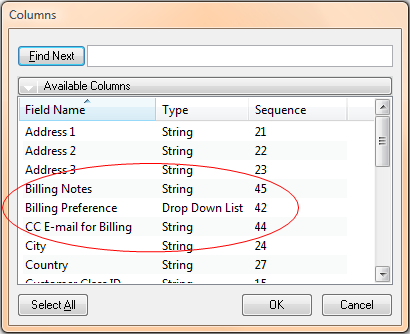
By default every field on the Extender window will be added to the SmartList. If you would like to remove some of the fields, open SmartList, go to Extras > Additional > Extender to bring up the SmartList Maintenance window and delete any unwanted fields there:
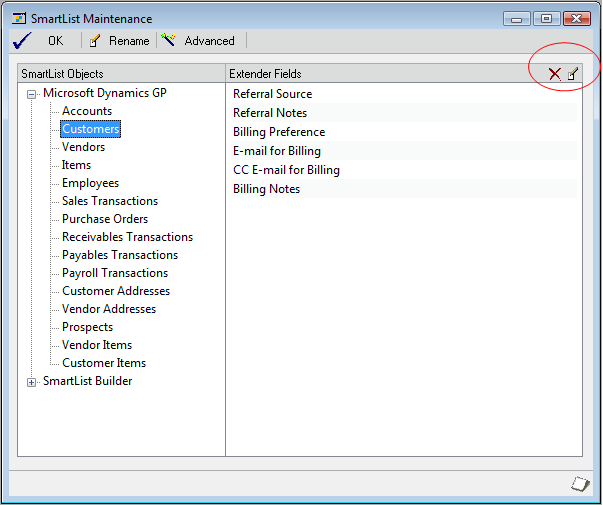
To delete, select the SmartList on the left, then the field to delete on the right, then click the delete button in the upper right corner. Right next to the delete button is the rename button, which lets you rename any of the fields you want. [Note: only fields added to SmartList from Extender will show up here.]
In this example I started by creating a brand new Extender window, however, you can easily go to any existing Extender window and add it to SmartLists following the steps above.




 Victoria Yudin
Hi Victoria,
I added Extender data to the GL transaction entry screen but don’t see how to add this to an existing smartlist – can you give any guidance?
LikeLike
Jay,
I don’t see the Account Transactions SmartList as an option to add anything to. Is that what you’re trying to do? In this case, you may need to create a custom SmartList.
-Victoria
LikeLike
Hi Victoria,
Your step by step process mentioned above has aided me in incorporating my extender field in SmartList, and for that I thank you, however I am not able to get the extender field in my SLB to create a calculated field. Could you please advise me on this process as well.
LikeLike
Carleesha,
Using this method you would not be able to add anything other than existing fields to existing SmartLists. For just about anything else, I typically recommend creating your own SQL view with all your data and calculations, then using SmartList Builder to create a new SmartList based on that view.
-Victoria
LikeLike
Thank you Victoria, I will go ahead and try that.
LikeLike
Hi Victoria,
I created an Extender window linked to the Vendor Maintenance window. Then I created a Smartlist Integration with the Vendor Smartlist. Everything looks fine, the 2 fields are available in the Smartlist except that it takes forever to retrieve the data, about 2 rows per second…
We ran a SQL Profiler and noticed that, for one returned row (e.g. 1 vendor), the Smartlist makes 84 SQL calls with two Extender fields and “only” 8 without the Extender fields. This explains the poor performance however, I wonder if this is nornal?
Are Smartlists Integrations always that slow? We can use Smartlist Builder to create a new Smartlist and join the SQL view but we would prefer to use the existing one.
Thank you very much for your help,
-Denis
LikeLike
Hi Denis,
I just did a quick test and I definitely see the slowdown once I add Extender fields to a SmartList. I didn’t time it – with the data in the sample company it was noticeable, but not terribly significant. However, there are only 102 vendors there and I only added a few columns of data. I imagine that this would be more noticeable with more data.
Without any specific knowledge of this, I would guess that because of what has to be done to accomplish adding fields to SmartLists ‘on the fly’ like this, the code has to be very generic and thus inefficient. Similar to coding SELECT * instead of specifying only the fields you need. Again, this is only a guess. I typically prefer to create custom SmartLists for Extender data myself. Even though it’s a bit of a pain to code Extender data, it is usually well worth it in the end for the performance as well as flexibility.
Have you asked about this on any of the Microsoft forums or talked to GP Support? Just curious if anyone else has provided any feedback on this…
-Victoria
LikeLike
Hi Victoria,
Thank you for following up. No, I haven’t talked to GP support yet or asked the forums. I did some searches though, but they have been unsuccessful. Too bad that I only had the issue just after coming back from Convergence… There was plenty of GP support on spot!
We have about 3250 vendors which could make the slowdown appear even worst but you are probably right, the implementation must be very generic and inefficient. I will ask the forums and see… In the meantime I will follow your advice and create custom SmartLists for Extender!
Thank you again,
-Denis
P.S. Your site is very well done and organized, I like it very much. Your contribution to the GP community is also very significant and appreciated by all, including the other MVPs. Thanks for that.
LikeLike
Hi Victoria,
I created a window to add more details to the manufacturing order entry window. I know that you dont deal with manufacturing, but applying the same technique above, when I was adding smartlist integration, switch the smartlist product to manufacturing, but there are no smartlist objects listed in the second combo. So my question is how can I add a smartlist object ?
LikeLike
Hi Raouf,
There is a limited list of SmartLists that this is possible for. It may just be that no manufacturing SmartLists are available for this. I would recommend posting your question on the GP Community forum to see if you can get some more feedback on this specific to manufacturing.
-Victoria
LikeLike
Hi Victoria,
Is there a limit to the number of Extender fields you can add to a SmartList or SmartList Builder Object before the Field Type shows as “Not Defined”? I have used Extender and SLB quite a bit and have tried all the troubleshooting advice from the KB article and your article as well, but it seems that only the first several hundred fields (I will have to count exactly how many) when added to Smartlists work fine no matter which Extender windows they come from and the rest show up as “not defined”. Any thoughts or suggestions?
LikeLike
Hi Brynn,
I have never run into this before, but I can’t say that I routinely add several hundred Extender fields to a SmartList, either. How exactly are you adding them? And in what version/build of GP?
-Victoria
LikeLike
Hi Victoria,
I did a test today to see just how many were added before the type changed to “Not Defined”. I was able to add 8 windows with 76 total fields. We are adding them through Extender as both the user guide and your instructions in the post above describe. GP v10 SP4
LikeLike
Hi Brynn,
So the 77th field changes to “Not Defined”? Seems kind of an arbitrary number. I have not heard of this as a bug, but have you checked with Microsoft on this?
Sorry I cannot offer any more information on this. It may be that this is a limitation and your only option for this would be to use SmartList Builder and create a SQL view with the data you want to show.
-Victoria
LikeLike
Regarding Extender security, would anyone know how to grant access (GP2010) to a print option within an Extender window? We have an extender window enabled for our Project Accounting module and in the lower-left-corner of the extender window is a printer icon. When I click on the printer icon the desired report is produced (but then I’m the admin). When my end user clicks on the same icon, they receive back a “not privileged to run this report” message. I’m sorry, but GP2010’s security is not all that intuitive when it comes to options outside the usual modules like Payables, Receivables, etc.
LikeLike
Hi Victoria,
Recently we encountered all smartlist created by Smartlist builder upon clicking on it, show an error message
(a) GetRecordsExtender of form SmartlistBuilder Object
(b) Stringoverflow on set ‘Record Count’ and if click on Debug, we get the same error as above – GetRecordsExtender of form SmartlistBuilder object’, 3830, 4,0,0……
These smartlist were OK all this while.
This only happen on the server but not on other client PC.
What should I do? Is GP corrupted and require reinstallation? I tried all the maintenance work at Smartlist builder such as Refresh Cache, Refresh Smartlist and Check Link.
Seeing the message has the word “Extender”, I also run all the maintenance work on Extender.
But all the above does not help a bit.
Any clue why this happen?
LikeLike
May,
I have not seen this before, not sure what have caused something like this. Do you know if anything was changed or installed on the server?
You could certainly try re-installing GP, or maybe even a repair. If this persists, you may need to talk to GP Support about what’s causing this error.
-Victoria
LikeLike
Hi Victoria,
About Extender Notes, yes you are write you cannot create view on those notes through Extender View option. But you can create view through SQLServer.
Thanks
LikeLike
Hi all – GP9 – Extender
Am I correct that you cannot create an Extender view for Extender notes? This being the case, or other, it appears all details for Extender Notes are housed in the EXT00150 table – please confirm.
Thanks for your valuable support.
Regards
Stu
LikeLike
Hi Stu,
As Naseer has confirmed, Extender Views will not include the Extender notes, only windows. From what I can tell, you are right – all the notes are in EXT00150.
-Victoria
LikeLike
Hi Victoria,
Thanks for this support. It resolved.
Naseer
LikeLike
Hi Victoria,
Thanks for prompt reply, I appreciate that. I did create a view by adding Extender tables into my previously built view. Result is coming up now, but it is showing some garbage charactors where ever the record is null. Why it is like that?
How can I remove that garbage?
Thanks
LikeLike
Naseer,
I have noticed in GP 10.0 that SmartList does not handle NULLs very well. The way I typically address this is to use SQL views for all my SmartLists and to code around NULLs in SQL using something like:
coalesce(FIELD,'') as StringFieldor
coalesce(FIELD,0) as NumberField-Victoria
LikeLike
Hi Victoria,
I did the same steps but I could not get the result in verion GP 10. Why?
I have a new Smartlist created by using a new Extender View. Smartlist is working fine. But when I add a new Extender window into it, it does not come. Not a single field is appearing.
Can you help me in it?
Thanks
LikeLike
Naseer,
I have seen this happen if the Key Fields are not correct. You could also try creating a new Extender View with both the Extender windows and verifying that view still shows data.
-Victoria
LikeLike
Hi Julie,
There might be an easier way to do this if you’re using SmartList Builder. Extender has built in functionality to automatically create a SQL view with the Extender data for you, and it can bring in all the actual list values for you instead of having to do this linking manually. Take a look at my post on creating Extender Views for more detail on this.
-Victoria
LikeLike
Victoria,
I went through the steps above, but I’m having a slightly different problem that I’m hoping you can help with. When I use Smartlist Builder, I can access the Extender table and fields that I need. However, there are several data types are being saved in one field (e.g. fabric, path). Field PT_UD_NUMBER saves the value type (3=path, 4=fabric). Field STRGA255 saves the corresponding value. So I need to look-up PT_UD_NUMBER to get my STRGA255 value. Is there a way to complete a look-up in Smartlist Builder.
LikeLike
Hi, i´ve read the article, and it help me a lot, but i want to ask you if you have this kind of information, but aplying to GP8. Or if you now where can i find it.
Because the menues and configurations are a litle bit different between versions, and a cant find anything in partner source.
Thanks
Gabriel
LikeLike
Gabriel,
I have not worked with Extender too much in GP 8.0, but from what I can tell, the functionality should be pretty much the same. Please try it out and let me know if you do find any differences or have any questions on it.
–Victoria
LikeLike
Michael,
I have seen this a few times when Extender windows have been added, removed, then added again. The only way that I have been able to fix this is by taking the following steps:
1. Manually delete all the Extender fields from that SmartList (see the last screenshot in my post and the associated instructions), close SmartList.
2. Go back to Extender, delete the SmartList link from the window.
3. Re-add the SmartList to the Extender window.
Another reason why there may be an issue is outlined in KB article 914170.
If neither of these helps, post back with some more details of which SmartList and what the keys are on your Extender window and we’ll try to troubleshoot further.
-Victoria
LikeLike
Victoria,
I appreciated the step by step approach. Everything went well until the time to run the report. All the fields were present, however the data did not come over into the columns.
Any thoughts on what may have occurred?
LikeLike
Mariano Gomez, MVP says:
http://dynamicsgpblogster.blogspot.com/2008/11/victoria-yudin-on-adding-extender-data.html
LikeLike