

 January 4, 2009
There are a number of different ways to record paying vendors with credit cards in GP. This is a topic that comes up periodically in newsgroups and I would like to share what I have personally found to be the most straightforward and comprehensive way. This is a long one but at least there will be lots of pictures. Even so, you may want to get comfortable and grab a cup of coffee first. Don’t say I didn’t warn you. 🙂
There are typically three important goals that companies have when paying their vendors with credit cards:
- Most of the purchases need to be recorded against the actual vendors. Especially for inventory purchases.
- Monthly credit card statements need to be reconciled quickly so there is no delay in paying the bills and no huge unapplied payments sitting in GP because it takes so long to reconcile and enter the statements.
- There are many ‘one time’ or ‘miscellaneous’ vendors that are paid with credit cards. While it is not important to track these purchases under individual vendors (as in # 1 above), it is still important to keep track of who the vendor was and to make it easy and fast to reconcile these purchases on the statement (as per # 2 above).
Keeping these goals in mind, let’s walk through a few examples. I will be using Dynamics GP 10.0 for the navigation and screen shots, but this process is the same in any version of GP. Please click on the screen shots to see them larger/clearer.
First we need to create a payables vendor for each credit card. The important step here is to create a different vendor for each distinct account that you get billed for or pay. If you have three American Express accounts that get billed and paid separately, create three vendors. For our example I will create one AMEX vendor (Cards > Purchasing > Vendor):

Next step is to set up a Credit Card (Microsoft Dynamics GP > Tools > Setup > Company > Credit Cards). I typically use the Vendor ID for the Card Name (unless your vendor ID is something like 12345). To set up a credit card to pay vendors select Used by Company, choose Credit Card and enter the Vendor ID associated with the credit card vendor:
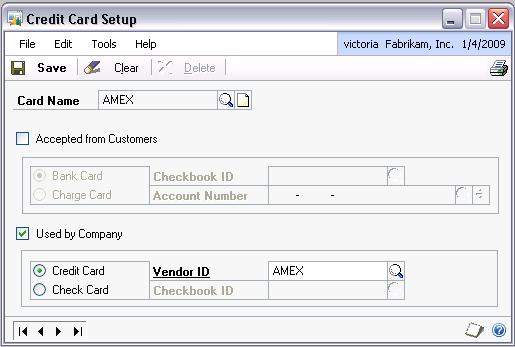
That is all the setup required. Now you are ready to enter transactions. There are a number of typical scenarios:
Scenario 1: You purchased non-inventory items from a vendor want to track and pay them with a credit card. You have not posted the invoice yet.
This can be handled in one transaction (Transactions > Purchasing > Transaction Entry). Enter the transaction like you would normally enter a non-inventory payables invoice, then enter the amount you paid with the credit card on the bottom right:

When you tab off the Credit Card amount, the Payables Credit Card Entry window will pop up. Choose the credit card and date. Important: to accomplish our goal # 2, we need to change the Receipt Number to include whatever will help us match this purchase with the line item on the credit card statement. This Receipt Number will become the invoice number under the credit card vendor. Typically the date and the ID (or name) of the vendor you are paying is enough:

Note that I put the date in a little strangely: 081219 for December 19, 2008. This is by no means a requirement, but a ‘trick’ that I have gotten used to as a nice additional sorting mechanism for my transactions. I will remind you of this a little later on in the example.
If there are multiple charges from the same vendor on the same date, you will need to come up with unique Receipt Numbers, so either use the last few digits of the Document Number (081219 STAPLES 462), add a letter to the end (081219 STAPLES A) or something similar. While you may not be able to fit the entire vendor ID or name in here, usually you can get enough in to allow easy reconciliation.
The GL distributions on this may be surprising if you have not entered similar transactions before:

It is crediting the Accounts Payable account because you still owe that money to the credit card vendor. However, the type of that distribution is CASH because you are entering a ‘payment’. If you have a different Accounts Payable account set up for the credit card vendor, you will see that account here, not the Accounts Payable account for the vendor you are entering this transaction under (STAPLES in this case).
Once posted, what this will accomplish:
-
Creates an invoice under the STAPLES vendor.
-
Creates a payment under the STAPLES vendor and applies it to the invoice in # 1 above.
-
Creates an invoice under the AMEX vendor. This invoice is open (unpaid) at this point.

STAPLES vendor

AMEX vendor
Scenario 2: You have already posted the payables invoice under the correct vendor or you have purchased inventory items and have posted the invoice in POP.
Since the invoice is already posted, we just need to enter the payment side, which is done as a Manual Payment (Transactions > Purchasing > Manual Payments). The Vendor ID will be who you are paying, the Payment Method is Credit Card, once you choose that you will see a lookup for the Credit Card Name. For the Document No. enter the date and the vendor you are paying as this will become the invoice number under the credit card vendor. In this example, we have already posted an invoice for DELL, now we are recording that we paid them with a credit card:

Enter the amount paid by credit card and Apply just like you would any other payment. Again the GL distributions may not be exactly what you are expecting:
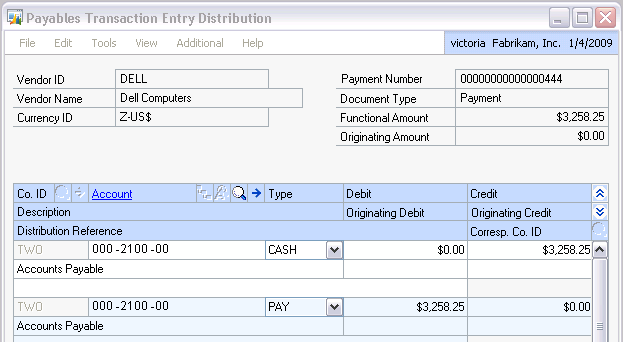
The CASH type distribution is recording the payment, but since it was made with a credit card and not cash, it is crediting Accounts Payable (this will be the Accounts Payable account from the credit card vendor). The PAY distribution is recording the payment to the original vendor (DELL in this case). Basically, this transaction moves the liability from one vendor to another.
Once posted, this will add a payment to the DELL vendor and an open invoice to the AMEX vendor:

DELL vendor

AMEX vendor
Note the order of the transactions for the AMEX vendor – they are sorted in correct date order, even though they are in different years. This is because of how I entered the date with the year first and using 6 digits. Again, not a requirement, but it makes your credit card vendor invoices sort automatically with the default sorting GP uses.
Scenario 3: You purchased something from a ‘one time’ or ‘miscellaneous’ vendor using a credit card. You do not really want to clutter up your Vendor list, as you might only buy from this vendor once or twice.
This should be entered as a payables invoice directly under the credit card vendor (Transactions > Purchasing > Transaction Entry). The vendor ID will be AMEX in my example and the Document Number will have the date and the name of the vendor. I also put the full name of the vendor in the Description, as there any many times with this scenario where the full name will not fit into the Document Number:

Having the full name in the Description will make it much easier to search for this vendor in SmartList. Once posted, this will show as another open invoice under the AMEX vendor.
When you receive your credit card statement, open the Payables Transaction Inquiry window (Inquiry > Purchasing > Transaction by Vendor), uncheck History and Work, and you will have a list of all open (unpaid) transactions to reconcile to the statement. And if you have used my date ‘trick’ they will even be sorted very closely to what should be on the statement:

Of course you can get this list of transactions in SmartList as well and export it to Excel if that is preferable. Typically I find that with this method I just check off the transactions I already have in GP on the credit card bill and circle the ones I still need to record.
This method is certainly not for every company out there paying vendors with credit cards. However, it may provide some solutions for many. My goal is simply to offer options.
I have gotten feedback in the past that this method is very time consuming because you have to enter all the individual transactions instead of one transaction for the entire credit card statement. In a few cases that is true. But in many other cases I have seen companies take days to reconcile the AMEX bill once it is received. In those cases, this method may provide a viable alternative.
I would also encourage companies with a high volume of credit card transactions to log in online periodically (virtually every credit card company/bank offers this feature now) and spot check to see if they have all the transactions in GP that the list online shows. If not, this can help get the information from those card holders that typically lag in getting you their receipts or tend to lose them before the statement even shows up. And it is a lot easier to remember what happened last week than what happened a month and a half ago.


 Victoria Yudin
Wow, this was awesome and just what we needed as a tutorial. Thank you!
LikeLike
Hi Victoria,
Thank you for sharing this post, it has been extremely helpful. We have one issue we need help with. What can we do if our credit card is charged in one month, say 02/28/18, but our shipment isn’t physically received and our PO isn’t received in GP until 03/02/18? And our credit card statement cuts off at month end.
Thanks,
Shelly
LikeLike
Hi Shelly,
Probably the easiest thing you can do is enter a manual payment to the actual vendor and enter it as paid by the credit card. This will then show as an unapplied payment (negative payable) on the actual vendor and an invoice to be paid on the credit card vendor.
Once the invoice is posted, you can apply the payment already there to the invoice.
Hope that helps,
-Victoria
LikeLike
Makes sense, just like an unapplied payment for any other reason. Thank you!
LikeLike
Hi Victoria,
Thank you for all of the helpful information! My company integrates most of our A/P invoices into GP from a 3rd party POS system. We pay many of our vendors with a credit card and would like to leverage GP’s credit card functionality, but are currently not integrating those invoices since they are already paid. Is there a way in GP to set a vendor as always being paid by a credit card so that these invoices can be integrated to the original vendor and then transferred via the credit card functionality to the appropriate credit card vendor?
Thanks!
Dave
LikeLike
Hi Dave,
I believe you should be able to import invoices with a credit card payment – that would solve the issue. There is no setting in GP that accomplishes this, it would be part of your import logic.
-Victoria
LikeLike
Hi Victoria,
Great info on credit cards. Wondering if you can help on the following scenario.
We are starting to use corporate credit cards for employee expenses (issuing corporate cards to all employees). We set our employees up as “vendors and have previously reimbursed employees via eft.
Now that everyone has a credit card, we will need to split the payment method between credit card and eft (for out of pocket expenses). When A/P transactions are created we would like the whole expense report processed against the employee “vendor ID” for reporting purposes. We are wondering how to move the credit card lines within that A/P transaction to the credit card vendor?
Example: entry has 4 expense transaction lines. 3 were paid with the corporate card and one was out of pocket. How would we move the total amount of those 3 lines to show as a liability on the credit card subledger and leave the one amount owing to the employee?
Bit of a head scratcher
Thank you very much
LikeLike
Shirley,
So if I understand correctly, you may have one or more invoices open under the Employee vendor (vendor EMP). Let’s say that totals $500. However, $400 of that was put on the corporate card (vendor CC). To “move” the liability from the EMP vendor to the CC vendor you can enter a manual payment for the EMP vendor for $400 paid with a credit card which is set up to use vendor CC. That will leave $100 due to the EMP vendor and create a new payable to the CC vendor for $400.
The only concern with this might be matching this up to the credit card statement. For example, if the $400 in my example is really 3 separate transactions on the card, you may want to instead enter 3 manual payments, one for each credit card transaction, that will total up to the $400. That is more work in entering the transactions, but less work when reconciling the credit card statement to what is in GP.
Hope that helps.
-Victoria
LikeLike
Great post! Thanks for sharing!
Could you please advise how do you do your monthly credit card reconciliations? We recently migrate to GP & have more than 10 company credit cards. We could do bank reconciliation for all checkbooks but not credit card. Could you please shed some light on this?
Thank you very much!
LikeLike
Hi Jessie,
I usually set up a SmartList for the Credit Card vendor that pulls in any non-historical transactions. If everything is entered properly, this should match the statement.
-Victoria
LikeLike
Good afternoon — I have a situation where a vendor made a duplicate credit card charge in error in Janaury and the credit will not hit until February. (This was a one-time charge). In order to reconcile the January credit card balance and post the automatic payment, I must post the duplicate charge to the vendor as paid by credit card.
My question is when the credit posts to the credit card in February, how do I handle in GP since the original vendor invoice will no longer be open on the card to apply the credit to.
Thank you!
LikeLike
Hi Becky,
You have 2 options:
If you entered the duplicate change against the actual vendor (not the credit card vendor), you can enter a Return and show that it was paid by Credit Card. (I have a post on Return transactions with more detail if you have not used Returns before.)
Hope that helps.
-Victoria
LikeLike
I didn’t see this in the responses anywhere. For those one-time vendors that you pay with credit cards, you could setup up dummy vendors, for example, Generic Gasoline, for all vehicle fuel purchases. Then when you enter invoices, you can use this vendor no matter what gas station you bought gas at. These could be added as individual invoices or a lump sum invoice for the month.
LikeLike
Hi Robert,
Why not just use the credit card vendor? In that case, you would be simply entering an invoice under that vendor, without a payment. When looking at a list of open transactions on the credit card, these would show up the same as the credit card payments made to other vendors.
-Victoria
LikeLike
Hi Victoria,
Could these instructions be used when processing Debit Card payments? Is there a way to see the payment in the Vendor account? We have a few recurring payments made on a monthly basis and would like to be able to track this by vendor? Any suggestions
LikeLike
Hi Debra,
For Debit Cards, I personally would enter them as Cash payments, not Credit Cards, since they come right out of your bank account.
Either way, you would see them in the Vendor account as payments. If you need to see the fact that they are debit card payments when looking at a list of transactions, you could come up with a way to always mark them as such. Maybe something like 160908DC XXXXXX for the Doc number, where 160908 is the date (YYMMDD) and DC for debit card, then XXXXXX is the vendor or some other identifying string.
-Victoria
LikeLike
Thanks Victoria! Big help!
LikeLike
My company is new to GP. We want to start paying invoices by credit cards. We generally would use scenario 2 (we key in the invoices, pay them later). Is there a way to build a “Credit Card Batch” or must each invoice be paid individually ?
LikeLike
Destiny,
GP 2016 (just released a few months ago) does offer a new feature to build a batch of credit card payments, but if you are on an older version, you would need to enter payments one vendor at a time. If you are paying multiple invoices from the same vendor in one credit card payment, you can enter those as one payment in GP and apply that to multiple invoices all at once.
-Victoria
LikeLike
How is this process done? To apply multiple invoices paid as one credit card payment?
LikeLike
Hi Melissa,
Once the individual invoices are posted you can enter a manual payment for the total amount you’re paying and apply it to all the invoices.
-Victoria
LikeLike
Hi Victoria,
I am able to create the credit card accounts in GP.
Wanted to know if there is any option to add the balance for the account.
or is it possible to compute the balance for a credit card account.
Please let me know.
Thanks in advance..!
LikeLike
Hi Vara,
Do you mean you want to see what the balance of the credit card transactions you’ve entered is? If so, you could (a) look on the Vendor Credit window (Inquiry | Purchasing | Vendor Credit) or (b) use SmartList to search for all non-voided purchasing transactions for your vendor where the Current Trx Amount <> 0.
-Victoria
LikeLike
Hi Victoria,
Thanks a lot for your response..!!
From the option (a) mentioned above I am able to see the current balance for a vendor having a credit card associated with.
What if a vendor has multiple credit cards associated?
When I try that I see the current balance for that vendor as the sum of the balance on all the cards.
Is there a possibility to compute the balance on credit card basis?
LikeLike
Vara,
If it’s important to see the individual card balances separately I can thing of 2 options:
-Victoria
LikeLike
Great post! We have recorded cc payables transactions this way and then create a check batch and print a check. However, when we want to pay by wire, I can’t seem to make this work. We have recorded all the transactions (exactly as pictured in your post). When I Apply Payables Documents, there is nothing to select? Please advise.
LikeLike
Hi Karen,
If you are paying by wire, you can enter a Manual Payment (Transactions | Purchasing | Manual Payments). You can apply the payment to the credit card charges at the same time by clicking the Apply button on that window.
-Victoria
LikeLike
I’m assuming that I should set up our credit cards in Financials as a cash account first?
LikeLike
Why would you assume that?
-Victoria
LikeLike
Great information. We process hundreds of lines on our credit card statement. Is there a way to upload scenario 2 using integrator, ie for our inventory purchases?
LikeLike
Hi LB,
Good question. Integration Manager does not have a Manual Payment import. Not sure if eConnect does. If not, I think it is possible to create something custom, but it would take some effort.
-Victoria
LikeLike
I too would like to know if I need to set up the credit card as a cash account
LikeLike
Susan and Alabamapamela,
No, there is no reason you have to do this. I typically set up the credit cards as Vendors and the payable to them is simply part of the total Accounts Payable in the GL. If you need to set them up as a separate GP account, at the very least you would set it up as another payables account, not cash.
-Victoria
LikeLike
I have to manually force my A.P. account code when I use this feature and use it as cash. Wondering how to change this so it defaults to the A.P. account as cash?
LikeLike
Susan,
That means you’re missing some account setup somewhere. It’s difficult to guess without seeing it, but I am guessing you’re missing the Accounts Payable account on the credit card vendor. Try entering your AP account there and see if that works. If not, your GP Partner should be able to help you with this.
-Victoria
LikeLike
Hi Victoria, thanks for you fantastic blogs. I couldn’t figure out which way to go with using Credit Cards, your blog was extremely helpful.
LikeLike
Yup. I don’t see that where I have set up the credit card vendor. I’ll try that. Is it done in the company setup or in the A.P. account?
LikeLike
I just did a little test and for these vendors it MUST be done at the vendor level. The company posting accounts setup is not enough.
-Victoria
LikeLike
We use manual payment to pay a credit card vendor. The payment is showing up when we do a payable inquiry however it is not showing up in checkbook. Do you have any idea why this is happening?
LikeLike
Carla,
Is it possible the wrong checkbook was used on the manual payment?
-Victoria
LikeLike
Ok so to verify, I need to do this on all the vendors linked to the one main credit card account or just the one credit card account? Just want to be sure. Thanks so much!
LikeLike
Susan,
If you are using the credit card payment option (ie, you’re entering an invoice for a non-credit card vendor, then paying that invoice with a credit card), then you only need to enter the AP account on the credit card vendor. No others.
-Victoria
LikeLike
Hi Victoria –
I hope I am not asking a question that has already been asked, I tried to read everything before posting but I may have missed it.
I am new to a company that uses Great Plains and uses the credit card functionality. Our credit card company will automatically take the funds from our account if we do not send the check by the due date. We currently use the manual payment to enter the credit card statement and chose cash as the payment method since it has already been deducted from our bank account.
I don’t want to wait until after we have reconciled the entire statement to pay the credit card company so I want to enter the credit card statement to a prepaid account and then reconcile later. Is there a way to do this and still use the credit card functionality and reconcile feature to clear out the prepaid account?
Bettie
LikeLike
Hi Bettie,
If I understand correctly, you want to enter the credit card payment before entering the invoices. And you’re thinking you need to enter a ‘dummy’ invoice to prepaid to accomplish this.
There is no reason you have to have an invoice already entered to enter a payment. You can enter a payment to the credit card vendor (either as a manual payment or a computer check) and leave it unapplied. Afterwards, when you are ready, enter all the invoices and post them. Once that is done, you can go to Transactions | Purchasing | Apply Payables Documents and apply the payment to the invoices.
Hope that answers your question.
-Victoria
LikeLike
Thank you for your quick response! I look forward to using this blog to learn about Great Plains! I have a few more questions. I don’t have many resources here to ask how the accounting system works.
In the past when we enter the cc statement before it is due we have the statement reconciled and apply all the vendor invoices that we paid by cc (ie:UPS) and then enter the miscellaneous cc charges to the appropriate expense account (not entering to a separate vendor but directly to our cc vendor).
Q?: What is the entry that is created when applying UPS payments? Is it just between AP? Is it just moving from one vendor to the other?
However, lately we have not been able to reconcile the statement in a timely manner so the cc company takes the amount directly out of our bank account. We subsequently enter the cc statement in GP, select manual payment and choose cash as the payment type. Then we select all of the vendors that we paid by credit card and apply them as well as adding the direct charges and code those to the proper expense account. This method will debit our GL cash account directly which matches what the bank did.
I was trying to figure out a way that would allow us to prepay the credit card before it is reconciled so the cc company doesn’t have to ACH our account.
Q?: My question was related to the GL account I would use when entering the payment to the credit card vendor (in this case JP Morgan). I set up a new prepaid account to code this to and thought that the prepaid account could be set up to reconcile to the AP as the payments were applied. But now I realize I am confused as to how the payment application process really works.
However, now we need to go in and apply the payments and if this application process only creates an entry between one vendor AP and the other I don’t know how to get rid of the balance in my prepaid account.
I sure hope this makes sense and I really appreciate your time.
Bettie
LikeLike
Hi Victoria –
I’m not sure if my previous reply came through, but it was long and I’ve read a little more so I think I understand it a little better. Based on your response above I just have one more question. If I am entering the payment to the credit card vendor an selecting a computer check and leaving it unapplied, what account should I debit?
Bettie
LikeLike
Hi Bettie,
When you are entering computer checks you should let the system default the accounts. If everything is set up correctly they should be a debit to AP and a credit to Cash.
Since both AP and Cash are control accounts, if you change them you will have a problem reconciling AP and Bank Rec to General Ledger.
-Victoria
LikeLike
Thanks! That is what I was missing! 🙂
LikeLike
Victoria,
We are looking to do the same thing “Don” was above. We have all our invoices coming into our vendors like normal. Various times during the month we may choose to pay X number of vendors for Y documents via credit card. We need to be able to use select checks but to a credit card not a checkbook. It would be ideal if it actually put the liability onto the credit card vendor like a manual payment does… Do you know what Don finally did? Or have any other suggestions?
LikeLike
Robyn,
Maybe in a future version of GP this will be available…in the meantime, you can only enter a credit card payment using Manual Payments.
-Victoria
LikeLike
Hi, I have a question. How I can process in GP a credit received on the credit card?
LikeLike
Hi Elisabeth,
If you’re entering the credit directly against the credit card, you can just enter a Credit Memo and use the credit card vendor. If you want to enter this against another vendor and show that the credit was put on a credit card, you can enter a Return transaction in Payables – follow the example in this blog post, but instead of a Cash payment enter a Credit Card payment. When you post the Return it will automatically create a Credit Memo under the credit card vendor.
-Victoria
LikeLike
Hi Victoria.
Thank you for your response. I entered the credit memo as a return to the vendor and it did automatically create a credit memo under the credit card vendor. Now, the credit card was paid by an ACH and I’m trying to enter the payment as a manual payment to the credit card vendor. I filled everything out as normal and when I go to apply the payment against to the open documents under the credit card vendor, the credit memo is not showing in the open documents; so the total payment paid out cannot be tied to the open documents because the credit memo is not showing along with the open documents. What can I do in this case? Also, when I look at the inquiry screen by vendor, I can see that the credit memo is there as an open document; but I cannot understand why it doesn’t show in manual payment entry. Any thoughts as how to apply the ACH payment and the CRM can be also included in this?
Many thanks,
Elisabeth
LikeLike
Hi Elisabeth,
Dynamics GP does not allow applying credits (returns, credit memos or payments) to other credits. So you will not see a credit memo on a list of documents to apply a payment to. This is expected. What you can do is apply the credit memo separately to one or more of the invoices that you are paying with your ACH payment. You can do this one of two ways:
Hope that helps,
-Victoria
LikeLike
Victoria I love your blogs on GP. They are the best. I wish I had a direct line to you but this will have to suffice.
We use Scenario 1 and have the issue… in this case “Unmatched Transactions”with AP Reconcile to GL showing the CASH type entry line on the GL side of the Excel report and nothing on the PM/AP side. Is our reconciliation option to compare the Historical AP Aged Trial Balance against the GL ?
LikeLike
Hi ltzoomer,
I wonder if you may be using an older version of GP? I think this was a known issue when the Reconcile to GL options were first released and may have been fixed in a newer version. No matter what, comparing the historical aged trial balance to the GL is something that should be done. The Reconcile to GL options are only there to help you find discrepancies.
-Victoria
LikeLike
Victoria, I’ve always used a spread sheet to code the Visa bill into just expense categories since we don’t usually care about tracking the vendor. At my current company, using GP2010, they started buying inventory with the credit card, so now I had to come up with something to accommodate POP. It’s on me to remember, but I have to separate the inventory purchases into a separate column and subtract them from the VISA statement total, then enter the remaining amount into AP with all the GL breakdown. Then pay the bill and pick up the manual payment entries I made to clear POP. Not perfect, but close to your Scenario 2. I really appreciate the time and effort you put into this blog. Thanks!
LikeLike
Hi Victoria,
We are using scenario 2 and everything seems to be fine until I look at the Reconcile to GL. The payment to our vendor is showing up on this report but the payable to our AMEX card is not. I have no idea what I am doing wrong. Please help.
Kathy
LikeLike
Hi Kathy,
You’re not doing anything wrong. Unfortunately the Dynamics GP Reconcile to GL process does not take credit card transaction into effect properly, so many companies do not use it. 😦
-Victoria
LikeLike
Hey Victoria!
Have you had a chance to dabble in 2013 yet? I’m new to GP and learning every day. I’ve really enjoyed your insights, and have found them very informative and helpful. I could definitely benefit from some advice. Here is my scenario:
Considering that some of these expenses will need to tie back to a Project and the rest need to tie back to various expense accounts and COGS accounts, do you have any recommendations on how to treat the above situations with a holistic?
I was thinking I would create a PO for the month and add to it throughout the month. Then, when the statement comes in, I add in anything I was missing. Then I would “Receive and Invoice the PO items,” which then results in a “Receivings Transaction Entry” against the vendor, where I can change distributions if necessary.
Or I could organize project expenses onto one card and every day expenses onto another, where I would approach the project expense card similar to what I have outlined above and every day expenses using Scenario 3 considering that 90% of these transactions are with one time vendors, but some are vendors that are set-up in the system.
LikeLike
Hi Kristina,
I don’t work with the Project Accounting module, so you might want to get some advice from your GP partner on this…however a few general thoughts/guidelines that may help:
-Victoria
LikeLike
Hi Victoria,
We have been using Scenario 2.
Because of this, however, when I go to the “Edit Payables Batch” window when doing a check run, I see that all my vendors that are paid with Scenario 2 show up in my Edit Payables Batch window with the “Indicates that a credit document is applied” icon next to their invoices. If I try to click on one of their invoices with that icon I get “Document is fully applied”. How do I get these “Document is fully applied” invoices to go away?
LikeLike
Hi Angela,
We are using a mix of Scenario 1 and Scenario 2 entries, however, we do not see anyone with a $0 balance on the Edit Payables Check Batch window. What we do see, is if there is a vendor that is typically paid by a credit card and still has a balance, they will show on this list and all the previously paid documents will show with an Amount Remaining of $0 here. This is because by default GP keeps a list of the previously applied documents to put on the next check remittance for the vendor.
I think there are 2 possible work-arounds for this, however, you would really want to test these is a test company to make sure they do what you want:
Hope that helps.
-Victoria
LikeLike
Hi Victoria,
I was successful in clearing the applied payment documents as mentioned in #2 of your response.
As for #1, I looked at our Payables Management Setup and the “Print Previously Applied Documents on Remittance” Is already unchecked, but I changed the “List Documents on Remittance” from All Documents to Invoices Only. Hopefully that will stop the future accumulation of the applied payment invoices.
Thank you VERY much for your help!
LikeLike
My company is new to Dynamics and found your credit card post very helpful. One question though, the payment transaction on the original vendor has no distributions and shows up on the AP Reconcile to GL spreadsheet as an “potentially matched transaction”. Is this correct?
LikeLike
Hi Beth,
You are right, if you are using Scenario 1, where you enter and pay the transaction at the same time, it will not show up in the AP to GL reconcile properly. Just one reason most companies I work with do not use that AP to GL reconcile. 🙂
One workaround for this would be to enter manual payments instead of payments on the fly…like in Scenario 2.
-Victoria
LikeLike
Hi Victoria,
We are going to start using this process for our credit card transactions and have one question.
Using Scenario #2: Manual Payment, I am wondering if there is a way to set up a default cash account for the credit card.
When I run through the scenario (create the manual payment, credit card, select the credit card, enter the amount, apply it to the invoice, and click distributions) no account shows up for the CASH line (our AP account shows up on the PAY line). How do we get that to default to our AP account?
LikeLike
Hi Angela,
The CASH distribution will default to the Accounts Payable account of the Credit Card Vendor. Can you please test entering your AP account there and entering another manual payment this way to see if that does it?
-Victoria
LikeLike
Victoria,
It worked! Thank you!
Angela
LikeLike
Hi Victoria,
I’m new to using Great Plains and have come across something at my company that doesn’t usually happen and I’m not sure how to record it in Great Plains. We pay our credit cards and other invoices by cheques (in batches), recording each separate invoice in the transaction entries. In the distributions we also show which accounts the money comes out of since we have multiple funding accounts.
We have just recently received a c/c statement with a refund from a previous purchase.. I’m not sure how to detail that since the credit card was paid in a previous batch and thus would show in that batch what account that money came out of to pay that transaction.
This new credit card statement now shows a lower total balance owing then our purchases due to the refund.
How do I show that in the distributions or even GP in general..how do I show that money came back to one funding account and then also show money coming out of other funding accounts to pay for specific purchases?
It’s especially confusing since I want to make sure to detail this but also because the money that is coming back to that particular funding account is more than what will be paid from that particular funding account.. so we end up with a credit to that funding account..
Does this make sense..
Please help!
LikeLike
Hi Lisa,
Are you following the methodology I outline in this blog post to record your credit card transactions? If you are, then you can enter a Return transaction for the refund. Here is a blog post about that: https://victoriayudin.com/2008/12/30/payables-return-transactions-in-dynamics-gp/.
-Victoria
LikeLike
The reconciling of the Credit Card statement is very time consuming.
I have tested using the Credit Card as a “check card” tied to a checkbook ID (setup as a liability account). This would enable me to reconcile the “checkbook” to the credit card statement and select the charges and payments made without “applying” payment.
The ending statement balance entered would be negative since it is a liability account.
Is there any issues you may see with this thought process?
LikeLike
Kathy,
I don’t see how reconciling the credit card statement would be any different using a vendor vs. using a checkbook. You just need to create a SmartList favorite under Payables Transactions and filter on anything not in history and not voided and you would have pretty much the same list as you would in the Bank Rec module.
I do see your point about being able to reconcile without applying a payment. Typically, if that is needed, you can just dump the SmartList into Excel (I do that anyway, when I am reconciling) and just save the Excel file once reconciled if needed.
That said, I think overall the approaches are very similar. One big difference I see is that paying a vendor with a check is a little more straightforward in GP than paying a ‘checkbook’ with a check. Also, some companies prefer to keep all of this stuff in payables, so that they do not have to give the user reconciling credit cards access to bank rec. There might be some other differences I have not thought of yet, as I have never used checkbooks for this.
Hope this helps.
-Victoria
LikeLike
They make online payments so I would just make a Bank Transfer from one checkbook to the other.
Thanks for the quick reply!
LikeLike
I realize this blog is several years old, but I have a problem. I appreciate all of the detail you have. My problem is with the Payables Transaction Entry Distribution. Mine is coming up different and I don’t know how to change it. I know what is showing on my side is incorrect. Can you help?
LikeLike
Tanya,
Try clicking the Default button on the Payables Transaction Entry Distribution window. That will let you reset the distributions to what GP thinks they should be based on the transaction totals. If that does not help, please give me more detail on exactly what is wrong with the distributions and I will try to help.
-Victoria
LikeLike
This process works great when it’s a non-PO transaction. Is there a way to pay a vendor via credit card when the pruchase is on a PO? thank you.
LikeLike
Carrie,
That would be scenario 2. In GP 2010 and earlier, you cannot link a payment to a PO. So first, you would enter and post the invoice in the POP module, then enter a manual payment for it with a credit card.
Once I get a chance to play with the GP 2013 functionality a little more, I will probably write a new blog post with a GP 2013 update for this. But if you’re not yet using GP 2013, then that will not help you with your question.
-Victoria
LikeLike
These directions seem very easy. One question. When you are entering in the transactions, I believe you can create a batch, and use manual payments to post the batch at one time. What do you use as the checkbook ID when setting up the batch? Thanks.
LikeLike
Hi Bill,
The checkbook chosen on the batch is just the default – if you are entering credit card payments, the checkbook will not be used, so it really does not matter what you have in there.
-Victoria
LikeLike
Victoria,
I’ve been using your instructions for paying vendors by CC for a while now. I’ve noticed that when I run a SmartList report for Vendor Balance that sometimes vendors show up with a balance that should have a $0 balance. Upon further investigation it looks like these transactions were paid by CC. This isn’t happening with all transactions that are paid by CC, just some. These transactions are coming off my aged trial balance just fine. I haven’t been able to find any correlation between the problem transactions. I do almost all my CC transactions following the instructions for Scenario 1. Any insight into what may be causing this?
LikeLiked by 1 person
Hi Nicole,
At first when reading your question I thought it might be a timing issue, but that does not sound right, as SmartList should not care about dates when showing you a balance (unless you have a custom SmartList?). I also have not run into this issue before. This is one of those situations where I would have to look at it, as it is happening. Maybe next time it happens you can email me a screenshot of your SmartList and the transactions involved and I can see if I can help you figure out what is causing this?
-Victoria
LikeLike
Hi Victoria,
I am new to GP and looking for insight into best practice for employee expense tracking when corporate cards (non-reimbursable) are involved. I send reimbursables for employees to A/P as vendor invoices. I have a vendor set as AMEX and any non-reimbursable charges made on the corp card go as vendor invoices against AMEX. Is there a way to associate the AMEX expense incurred with the person who made the purchase? All of my employees are set up as Vendors.
Any thoughts are greatly appreciated!
LikeLike
Hi Kelly,
Sorry, I am not sure what you mean…can you please walk me through a more detailed example of what you are doing (or what you need)? And what does ‘non-reimbursable’ mean in this case?
-Victoria
LikeLike
Hi Victoria,
I have a question similar to Kelly’s posted on 2/7/13. Our employees have company AmEx cards for company purchases. As they use their card they submit an employee expense report for the charges with the associated back up. When the expense is entered we debit the expense account and credit the AmEx expense account that is associated with their credit card. When we receive the AmEx statement we enter the invoice under the AmEx Vendor and debit the AmEx expense accounts (one for each card) and credit the accounts payable account. In a perfect world where we didn’t need to make sure each employee submitted all of their AmEx charges this would be fine, however it is a tracking nightmare that is currently being done in excel. I would like to use what you have described but I’m not sure how to manage essentially paying 3 vendors from one invoice.
Thank you!
Jen
LikeLike
Hi Jen,
One way I can think of doing this would be:
Hope that I understood what you’re asking and that this helps. If not, please give me some more detail on what doesn’t work for your specific situation in this scenario.
-Victoria
LikeLike
Victoria,
Here is what I think can be a solution (tell me if I’m wrong) using a combination of your 1st two scenarios. Under the AmEx vendor enter transactions and payment information. In my case I would set up credit card accounts for each employee (EECC) and link them to the employee. The distribution would debit a temporary expense account-PURCH and credit the a/p-CASH account. This would create:
1) Invoice under AmEx
2) Payment under AmEx
3) Invoice under the employee credit card (EECC)
Then when the employee submits their expense report I would enter a manual payment under employee vendor ID selecting the invoices to pay and then selecting to pay by credit card and select their EECC. The goal of the distributions is to move the liability from the EECC back to the AmEx and to move the expenses to the correct expense account from the temporary expense account. Therefore, I would debit the correct expense account (PAY) and credit the temporary expense account (CASH). Would this:
1) Pay the Employee Vendor?
2) Create an open invoice to AmEx?
LikeLike
Hi Jen,
Sorry, I am a bit confused by your description of the process. Maybe it’s just terminology. Part of the issue could be that I am not clear on the flow of events as they happen. Can you please let me know the order of the events? (I don’t mean GP entries, I mean the flow of events in ‘real life’. :-))
-Victoria
LikeLike
Victoria: Everything is working great up to the point that I need to pay the Credit card company. I have all the open invoices under the VISA vendor. I create a computer check batch, select the VISA vendor, build the batch, print the checks. It gives me an error saying there are problems in my batch. I can’t edit or see what it is saying is a problem. Am I missing a step? Is there a setup issue? I do not want to use manual payment because then I have to type up a check.
LikeLike
Hi Julie,
Not really sure what to tell you without being able to see the actual error or any details about it. I would start by printing an edit list of your batch and looking through it for more details on the error.
-Victoria
LikeLike
Hello Victoria, regarding the questions on how to handle a credit on a credit card, the Return transaction you are referring to is the “little known, but very useful transaction type in the Payables module called Return” and not a Returns Transaction Entry like a Return w/Credit (since we paid for the transaction) ?
Continuing with the Staples example, let’s say I go to Staples and buy a fax machine and pay for it with a credit card. As soon as I get back to the office I follow instructions for Scenario 1 so I don’t forget. Then I unpack the fax machine and it does not work so I need to return it. They are out of fax machines so they issue me a credit on my card. When I get back to the office now what? I go to Transactions > Purchasing > Transaction Entry and create a Return?
Maybe you could write this up with nice screen shots like your other great blogs 🙂
LikeLike
Jimmy,
Yes, you would use a Return transaction in the Payables module (Transactions | Purchasing | Transaction Entry | Return) for this. I actually already have a blog post about how to enter a Return transaction here with screenshots and detailed explanations.
What you would do differently in this case is enter the payment on the Credit Card line (instead of Check as I have in my example). That will create a Credit Memo for the credit card vendor once you post the return, which should mimic what you will see on your credit card statement.
-Victoria
LikeLike
Hi Victoria…I will be paying multiple invoices with a CC. When I go into manual payment, is there anyway to tell GP to select invoices due thru a certain Due Date? And just let it automatically select those and give me a total? If not, can you see a work around without having to manually select the invoices I want to pay? The only thing I thought was to run an aging with a due day and get the total, then put that as my payment amount and use auto apply. Also does Auto Apply always pay what is due first? Thanx so much! I think you wrote and sql for matching manual payments to invoices paid?…
LikeLike
Hi Dana,
With manual payments you must specify the payment amount first, so my recommendation would be a report – either an aging, like you are suggesting, or a SmartList exported to Excel and subtotaled, or a custom report.
Auto Apply has two settings – Document Date or Due Date. This setting can be changed on the Payables Management Setup window. If you have this set to Due Date and are paying everything through a particular due date, I would think that will work for the most part. You might have some exceptions you need to deal with manually once in a while.
For the SQL view, I think you are referring to my Payment Apply Detail view – this will show all payments, not just manual payments, but you should be able to filter for just credit card payments if you want.
-Victoria
LikeLike
Victoria,
We will be paying our inventory vendors with CC soon. I have been using your instructions for CC payment for smaller vendors and it has been great. My concern with our inventory vendors is that we will paying a large number of invoices at at time. We will need to send to the vendor a remittance similar to what would print with a check payment so they know how to properly apply the payment on their side. Is there a way to print a remittance from a manual payment to a CC?
LikeLike
Hi Dana,
I don’t believe there is any ‘remittance’ report option from a manual payment. You could either (a) customize the posting report or (b) create a custom report – this would probably be my preference.
-Victoria
LikeLike
Hello Victoria, Great Article. I read a few articles about using this method to pay use tax. I’d like to setup a vendor called DOR (Dept. of Revenue) and a credit card called USETAX and pay any use tax amount due on a PM trx with this credit card. This card will be used only for use tax. My question is what AP account should I assign to the DOR vendor. Should it be wise to use Use Tax Payable or does it even matter? Can a general AP account be ok? Thanks!
LikeLike
Thank you for your kind words! This is really an accounting (as opposed to GP) question and is best answered by your accountant because the answer may differ based on each country’s requirements as well as the reporting requirements for your company. If you need to keep and report on the use tax liability separately from your other payables, then it should have its own General Ledger account. Otherwise, if all you need is to see the number at any one time, you can see it using the Vendor information, so if there is no requirement to keep it in a separate GL account, you can use the same AP account as all other vendors.
-Victoria
LikeLike
Hi Victoria
I have tried using the Second Scenario… The Vendor Ledger is affected exactly as it should… but i do not get an Open Invoice in the Credit card ledger.. Is there an issue with the Setup ? Thanks … ABC
LikeLike
Divya,
On the Credit Card Setup window – is your credit card set up as ‘Credit Card’ or ‘Check Card’?
-Victoria
LikeLike
Victoria,
Great post. I have a similar question to one of the other comments, but it is slightly different. When we use scenario 2, everything clears out just fine and the invoice and payment in the first vendor are applied and show as history in inquiry. THe problem is that when we run “select checks” to do a new check run, all of the accounts with invoices previously paid by credit card show up on the selection. Any ideas why this would happen or how to get rid of them efficiently?
LikeLike
Michael,
The good news is that checks will not actually print for those vendors, they will just print a remittance. It is, however, very confusing and distracting. The most likely reason for this is that you have Print Previously Applied Documents on Remittance selected on the Payables Management Setup window. When that is selected, any apply activity in-between checks will be printed on the next check. If you’re using Select Checks with no selection criteria, everything that has happened since the last check run will be included.
Some companies simply elect to turn that option on the Payables Management Setup window off. Another option may be to add some criteria when selecting vendors on the Select Checks window (this may need some set up first) – you can use something like Payment Priority or Vendor Class to filter only on the vendors that should be included in the check run. Yet another option may be to not use Select Checks but instead to use the Edit Check Batch window to build your check batches. Hard to recommend the best option without knowing a lot more about your standard transaction flow and volume, but hopefully this gives you some ideas.
-Victoria
LikeLike
Thanks for all the useful information on your blog. I have a question concerning your scenario 2. We have an US Vendor paid off by a Canadian Credit Card (Credit card statements are in $CDN).
• The outstanding amount for the Vendor is in $US.
• The Credit Card statement shows the payment as an $CDN amount.
• We use an Average monthly exchange rate for $US to $CDN .
In GP /Manual Payment entry window a $US value is expected. Should we enter the full outstanding amount in $US, how do we mark the actual payment in $CDN (from the Credit Card Statement) . Do we change the amounts in the distribution ?
LikeLike
Jutta,
That’s an interesting question and one that I have not been asked before. I did a little testing in GP an just like you said, there is no way to enter a credit card payment in CAD for this situation. However, I am not convinced this is wrong, based on my understanding of how typical credit card transactions are processed.
Just to be clear – when you pay the US vendor, are you actually saying to the vendor, process a payment of CAD 500 (for example)? Or are you paying them USD 500 and on your credit card bill this happens to show up as a slightly different amount in CAD?
-Victoria
LikeLike
Hi Victoria,
Thank you for sharing your vast knowledge of GP. I find your information very helpful in dealing with my client’s questions. Regarding paying vendors with credit cards, I got great information from your site, but have an additional scenario. How do terms transcend from vendor with 2%/30 to the credit card vendor with Net 30? We wound up manually entering the discounts in Edit Check Batch for the client’s first credit card payment to a vendor with prompt pay discounts.
LikeLike
Hi Ali,
That’s a good question and frankly one that has not come up before, so I surmise this is not something that is needed often. Since with a credit card payment you cannot use a check batch and you need to put in a payment amount upfront, I don’t see a way around having to manually enter the discount. It will all still work, but just might require an additional manual step for the discount.
-Victoria
LikeLike
This is excellent Victoria and thank you very much for taking the time to put this together. We are using the method outlined in Scenario 2 for our credit card payments to vendors and we are following the same steps you outline. Unfortunately it still doesn’t help us to understand why this is resulting in the voucher being voided as opposed to be being marked paid. There is 1 item that I noticed in your example that is different and that is that the on the Payables Transaction Inquiry window, the line item detailing the invoice line shows the full balance in the “Unapplied Amount” field. For the line item detailing the Payment, the unapplied amount is zero like your example. Also in the “Origin” field there is an asterisk next to the word, “HIST” which I understand means that the transaction was voided. This didn’t just happen once, it has happened every time we’ve done a credit card payment using the Scenario 2 method. This might be related to the fact that the transaction has been voided or could somehow be the cause of the transaction being voided. We just don’t know. One this is for sure and that is that no one deliberately voided these transactions. Prior to this year we used the method outlined in Scenario 3 to record credit card payments to vendors, so this was never an issue before this year, at least not to my knowledge.
Thanks again though for trying to help us out. This article will still be helpful.
LikeLike
Hi Samuel,
For what it’s worth, I have been using this method internally for my company and for many of our customers for at least 10 years and have never had an issue with something getting voided by it. (All on US or Canada installations of GP, no others, not sure if that makes any difference.) If the credit card payments are, indeed, causing voids in your system, something else is in the mix causing it or something is not working properly. Do you have any 3rd party products or customizations?
What is really strange is that out-of-the box GP does not let you void an invoice if it is paid. This has been the case for many versions and I just tested it again to make sure in GP 2010. You would first have to void the payment to be able to void the invoice. What you’re describing on the voided line display is correct through, it will have an asterisk next to HIST and it will have the amount of the transaction in the Unapplied Amount – that’s all expected behavior.
If you are able to figure out what is happening with the voids, please post back, I am very curious.
-Victoria
LikeLike
Thanks for responding so quick.
I guess what I’m trying to say is when you go to inquiry trx by vendor and select the credit card vendor, highlight the open invoice and click any blue hyperlinks to bring up the trx entry zoom window, click on the distributions button, no distributions show. The AP trx that created this invoice is really the Staples trx. What brought this up was like u said, the AP accounts from both vendors could be the same or they could be different. So I wanted to know what GL account was credited to create this open invoice for the CC vendor but no distributions show. If I look under the Staples vendor I see the AP account that was listed on the CC vendor card. But if I didn’t know this how would I find this out? By looking under the Trx Entry Zoom for the CC vendor, nothing shows. Does this make sense?
LikeLike
Jimmy,
It makes sense, this is why I recommend using the actual vendor name and transaction date as part of the document number for the credit card payment. That way, looking at the AMEX vendor transactions and seeing a document number of ‘120315 STAPLES’ without any GL distributions, you would know that the GL distributions can be found by looking at the Staples vendor transaction(s) on 3/15/12.
It also makes sense to me that the AMEX invoice has no distributions because no new GL event occurs on the AMEX invoice – all the GL distributions are already accounted for with the original (STAPLES) invoice and payment. What would be really nice is if GP provided an additional drillback to the original STAPLES transaction from the AMEX invoice, but that is not available, so you have to manually find the ‘originating’ transaction if you need it.
-Victoria
LikeLike
Hi Victoria, when you pay the first voucher (staples) with a credit card, GP creates a second voucher for the CC vendor (usually the very next voucher number ) and automatically posts it, hence it’s OPEN. Where/What are the distributions on this second voucher? No distributions show up on the posting journal for this second voucher when the first one posts. And when I go to Vendor Inquiry and click on this open voucher GP automatically creates and posts, I don’t see any distributions. Am I missing something?
LikeLike
Jimmy,
I think you are missing the payment transaction created ‘in-between’ the 2 invoice transactions. Towards the bottom of my Scenario 1 I describe the 3 transactions that GP creates when you post your ‘first voucher’:
Hope that helps.
-Victoria
LikeLike
Victoria,
We have implemented this process as you’ve blogged it. It’s working great except for one little thing that we’re not sure how to resolve. When we run the routine to reconcile to GL our payables management (our account 2000) we are out of balance by the amount of the credit card transactions we’ve entered. Can you shed some light on this?
Thank you in advance!!
Ann
LikeLike
Hi Ann,
I believe this is a known issue. This KB article seems to indicate that this is only a GP 10.0 issue (in the last bullet point) – so perhaps this has been fixed in GP 2010? I, frankly, have seen so many other issues with the reconcile to GL functionality that I don’t use it much. 😦
-Victoria
LikeLike
Oh my gosh! Thank you sooo much!! We hadn’t even run the actual reports as we were told the reconcile to GL tool was a shortcut to check the balances – It didn’t even occur to us to run the actual reports!! – they do indeed balance. Thanks again!! This blog has been a tremendous help to us!!!
LikeLike
Hi Victoria – FYI – I just saw this in GP 2013 so I guess this is still a problem in the GL to PM reconcile.
-Tracey
LikeLike
Hi Tracey,
Thanks for the update!
-Victoria
LikeLike
Hello Victoria, I am an avid fan of yours, your blogs have helped me more so much. I would like to ask for your advice on a question from a new GP customer I am supporting;
“How can I enter a “credit” to a credit card? I sell postage stamps to employees occasionally. The cash is put in petty cash. The petty cash reimbursement request is lowered by this amount. We reimburse the petty cash fund with a credit card. In transaction entry, I can’t do a negative invoice, I can’t do the return because I don’t have an invoice to credit, and the credit memo goes to “on account” only.
Can I use the credit memo and then apply the “on account” amount when I pay the credit card? Or is there another way.” KS
Thanks, Sheila
LikeLike
Hi Sheila,
Thank you for your kind words! I am not sure I entirely understand the example with the postage and petty cash in the context of credit cards…unless they have petty cash set up as a credit card?
In any case, there are 2 typical ways to enter a credit for credit cards:
Hope that helps.
-Victoria
LikeLike
Thank you, this is the scenerio as I understand it ; at the end of the month all the petty cash receipts will be entered in PM transaction entry as different vendors but with a credit card payment. During the month employees may buy stamps from the petty cash box, in which case they want to recognize the reduction of the associated expense account.
The person (credit card) who reimburses the petty cash is not the same person (credit card) that buys the stamps.
My first thought is to set up the petty cash as a vendor which would create an invoice to be reimbursed for the stamp sales.
What are your thoughts?
LikeLike
Sheila,
Maybe I am not seeing the whole picture, but this seems very complicated to me. Why not just set up Petty Cash as a checkbook instead? You don’t actually have to reconcile as with regular checkbooks, but having it set up this way lets you pay vendors from it. To get money back into it I would use a payables Return transaction.
-Victoria
LikeLike
Victoris – we are just starting to use this process and I am new to GP. We have run a test invoices in the system. We don’t want to cut a check to the credit card as our bank drafts the payment out of our checking account. Is there any way to adjust off the payment without cutting a check?
LikeLike
Kathleen,
Why not use a manual payment?
-Victoria
LikeLike
Great blog post! I am trying to find a report by the credit card vendor that shows the expenses by original vendor. Unfortunately it appears that once the original voucher is posted and the credit card vendor record is updated, you can no longer view the original transaction. Is this true? I need to report on the detail of the credit card purchases. I understand you can enter the vendor name in the receipt during the transaction entry, but during drillback you can’t get to the transaction. help?
LikeLike
Thanks Alicia,
You can always see the original transaction in GP (unless you are not keeping history – gasp!), but there is no drillback to it…you would have to find it manually. 😦 If you need a quick and easy way to see all of them, you’re probably talking about a custom report. I am not aware of anything in GP out-of-the-box that will do it. If you actually want the drillback, that can probably be accomplished with a customization. But if you’re looking for a report, then all the drillback will do for you is give you a lot of manual work to collect this information, so I am not sure how helpful that is.
-Victoria
LikeLike
Victoria,
What are your thoughts on simply using a GP Checkbook to represent a credit card account? The Checkbook’s “Cash Account” could be a credit card vendor specific liablity account. This liability account would be credited when paying the purchase vendor and debited when vouchering the credit card vendor. Using a Checkbook for the credit card allows for using GP’s Select Checks window, along with all other typical GP payment windows, and for using GP’s “Reconcile Bank Statements” window to reconcile the GP credit card payments with the credit card statement received from the credit card vendor. It also allows for creating only one voucher per credit card vendor statement thereby limiting check stub information, for the check paying the credit card vendor, to a single reference instead of it containing numerous internal invoice references, meaningless to the credit card vendor.
LikeLike
Hi Bill,
I have never used the approach you’re describing. I think overall it would work just fine…and whether this is better than using a vendor may very well depend on the specific usage of the credit card.
To your specific points – the only benefit I can kind of see is having the Bank Reconcile window available to use for matching up to the credit card statement. However, this may not be such a benefit if you are not always paying off 100% of each transaction and can also be accomplished by the apply process in Payables in a pretty similar manner. I have never seen a credit card vendor that needed a check stub enclosed with the payment, so I am not sure I buy that as a benefit…you can just not enclose the check stub.
Without actually trying this approach in a real life situation, some possible negatives that I can think of are:
-Victoria
LikeLike
Bill,
Do you use Credit Cards as checkbooks? I’d like to hear more about this option if you have used it this way.
LikeLike
We use Select Checks to build Computer Check batches and EFT batches; there are hundreds of posted invoices to be paid per batch. Is there an equivalent functionality of Select Checks but for building payments by Credit Card, for example, all invoices due by a given data to all vendors of a PAYVIAAMEX vendor class?
LikeLike
Hi Don,
There is no such functionality for credit cards. I am curious, because I have not had such a request before, are you actually paying multiple vendors with a credit card at the same time?
-Victoria
LikeLike
Yes, we do 3rd-party payment processing, and the check-run each day has hundreds of checks and each check can be applied to many invoices. We are converting several vendors to payment by CC. The Select Checks workflow does most of what we need in one step; our invoices have already been created from our Ops system via eConnect. Manual Payments with AutoApply by Due Date seems to me to be the most similar option for CC, but would take more manual steps such as pre-reporting what is to be paid, keying the vendors to be paid, the amount to be paid, hit auto-apply, etc…just seems like it could be more prone to error, so additional validation reporting after that.
I didn’t see any eConnect functionality for creating such a payment with multiple applications…???
I wonder if an option to retain the Select Checks functionality might be to just setup the CC in GP as a CheckBook (negative balance?), but have its cash account be the AP account or some other suspense account. Do you foresee any pitfalls with that? Thank you for all your advice! I really enjoyed this article and topic.
LikeLike
Hi Don,
There is no way to do what you’re looking for with manual payments…maybe a customization would accomplish it, but nothing out-of-the box. I think you might be on to something with a Checkbook with a negative balance going to an AP account instead of Cash. I have never done this, so I cannot give specific recommendations and I would recommend lots of testing prior to putting it into production, but in thinking through it, I don’t see any major issues.
One possible pitfall: If you only have one AP control account, I would not recommend using it for this, because you may run into issues with the AP subledger reconciliation. I think this should be a separate AP General Ledger account. And if you have multiple credit cards that you’re going to do this for, then use multiple checkbooks and a unique GL account for each. Not necessarily a show stopper, but may impact other accounting practices.
If you do decide to go ahead with this, please post back to me know how it goes, I would be curious to find out how/if it worked for you. Thanks!
-Victoria
LikeLike
Hi Victoria,
Can you tell me how to enter credit memos to venders you are paying by credit card. Thanks for you blog,
LikeLike
Jeanne,
You can either (a) enter a Credit Memo directly for the credit card vendor…or, if you want to keep track of the details for the actual vendor, (b) enter a Return for the actual vendor and put the credit card information on the bottom right (some more on Return transactions here: https://victoriayudin.com/2008/12/30/payables-return-transactions-in-dynamics-gp/).
-Victoria
LikeLike
Victoria,
We are entering a return on the original vendor and applying the credit card information in the bottom right. We see the Return on the original vendor (in history), but we are not seeing the return on the Credit Card vendor. Am I missing something?
Thanks, Kim
LikeLike
Kim,
I just tested this and also looked up prior entries that I have made, in all cases a Credit Memo was created for the credit card vendor once the Return was posted. If you drill down to the Return, what is the On Account amount in the bottom right corner? What are the Types of the GL distributions for the Return?
-Victoria
LikeLike
Victoria, please explain something to me. Your screen shot in Scenario 1 shows you making a credit card payment of $234.25. The total purchase amount is the same – $234.25. But you also have an On Account amount of $234.25. If you’re making a payment for the full amount, why is there an On Account amount? Also, when I do this, my On Account amount defaults to zero so how are you getting an On Account amount? Another thing, if the On Account is zero, when I post, the transaction doesn’t affect Payables but I do get a GL hit. So now I have a discrepancy between my PM and GL account. So I assume the key is the On Account amount but again, if my payment is the total purchase amount I don’t get an On Account amount. Please explain. Thanks.
LikeLike
Jimmy,
If you look at that screenshot carefully, you will notice the cursor is still on the Credit Card field, after the amount – that means the screenshot was taken before I tabbed off the Credit Card field. As soon as you tab off that field the On Account amount will change to zero – so what you are seeing is correct.
As to your other question – if your credit card is set up to go to a Vendor with the AP GL account for Accounts Payable, when you pay another Vendor’s invoice with this credit card, it will create a payables invoice for the credit card Vendor. So there will still be an increase (credit) to the AP GL account and an increase overall in the Payables subledger, just to a different Vendor.
Hope that helps.
-Victoria
LikeLike
Yes, when I do a vendor summary I do see the payable to this vendor. However, I was testing the new Reconcile to GL feature of GP10 (not 2010) and immediately after posting an example of paying a vendor with a credit card I ran the Reconcile to GL process for Payables and there is a GL hit (on the right side) of the spreadsheet that gets created but nothing shows on the Payables side (the left) so the spreadsheet shows a discrepancy. Is there something else I need before I run this Reconcile to GL process to see that transaction show on the PM side?
LikeLike
Unfortunately, this is just one of the shortcomings of the Reconcile to GL functionality. I do not know a single company that is actually using the out-of-the-box Reconcile to GL functionality routinely or successfully.
-Victoria
LikeLike
That sucks. I thought that spreadsheet was a cool feature but if it’s not accurate what good is it. Now I’m really bummed. 😦
LikeLike
Jimmy,
If everything is entered correctly, you should not need a tool to help reconcile, as everything will reconcile already. 😉
Why look for ways to fix problems before they happen, why not prevent them instead?
-Victoria
LikeLike
Yes. That would be best but things don’t always turn out that way. 🙂
Regarding paying a vendor with credit card, is there a difference between this method and paying a vendor with a credit card via Manual Payment? I tested that but both accounts – the credit and debit – are the same AP account. I read Mr. Daoud’s article but it’s still a little fuzzy.
http://mohdaoud.blogspot.com/2010/07/when-using-credit-card-option-in-manual.html
Not sure I want to change the AP account to a cash account on the vendor I setup as the credit card vendor. Then if I use that same card as the way it’s described in this article it will behave different right? That is, I won’t have a payable to the credit card vendor since it will hit the cash account rather then the AP account. I’d have to change the account back and forth. I don’t like that. So how to handle that?
LikeLike
I am not sure what that article is really addressing either, sorry. I would never recommend that you change the AP account on a vendor with every transaction, whether it is a credit card or not. THAT is what gets you in trouble with reconciling. My suggestion earlier was about a one time upfront change when setting up credit card vendors.
Whether you are using a Manual Payment transaction or not has absolutely nothing to do with whether you are paying with a credit card or what account numbers will be used. Take a look at scenario 2 in my post above. A Manual Payment simply lets you record the fact that you paid another vendor with a credit card after your invoice to the original vendor has already been posted.
-Victoria
LikeLike
Victoria,
We are currently using manual payments, scenario 2, for a credit card payments but are having issues with payments becoming unapplied on our vendor accounts. Take for example yesterday I notice that an invoice appeared dated 06/03/09 as open. I went in to investigate what happened and discovered that this invoice was in fact paid via a manual payment to our credit card vendor. The payment on both accounts are still there and show that they have been fully applied to this invoice. Yet the invoice is now open with no payment to apply it to. I also have a invoice on one of our credit card vendors that shows that it is fully applied even though there is nothing showing applied to it. Have you ran into these situations and have any suggestions for solutions?
LikeLike
Teresa,
The only time in Payables that anything will become unapplied is when something is voided. There is no unapply and reapply option in Payables, so it is not possible that someone could go in and unapply a previously applied document. Can you confirm that there are no voided payments? It may also be that something went wrong somewhere, perhaps running a Reconcile would help (Tools > Utilities > Purchasing > Reconcile).
-Victoria
LikeLike
There are not any voided payments that is the weird thing. The payments show that they are completely applied and paid out but for some reason the invoices are becoming open months later when the payment is still showing fully applied and paid to that invoice. I will try the reconcile. Thanks.
LikeLike
Teresa,
Very strange. I have not seen anything like that in all my years of using and supporting Dynamics GP. Are there any customizations or 3rd party products installed? Is anyone changing data directly in the GP database?
-Victoria
LikeLike
We don’t have any ad ons or data directly changing on the purchasing side of dynamics. I also ran the reconcile report and that did not correct it. Thanks again for the help.
LikeLike
Teresa,
I know it’s been a long time since your post but I am having the exact same issue that you described. I was wondering if you ever discovered what was causing the open invoices to appear again?
LikeLike
Victoria,
We used to do this using the “separate GL AP account” method and decided to stop doing that and use just one AP account to make it all simpler.
Now we’re having trouble figuring out how to show the transactions in a SmartList the way you mentioned above. Could you walk us through building the SmartList to show the same transactions as they show up in the Inquiry?
LikeLike
Daniela,
The SmartList I am referring to above is under Payables Transactions. Add a column for Current Trx Amount and then search for all transactions where the Vendor ID is your Credit Card Vendor and Current Trx Amount is greater than 0.
-Victoria
LikeLike
Thanks Victoria. This is very helpful.
I setup a separate GL account for the credit card. Now, I can see the transactions by filtering on the GL account in the “Account Transactions” Smartlist.
Also, I added the “Reference”, “Originating Master ID”, “Originating Master Name”, and “Originating Document Number” columns to the “Account Transactions” smartlist. Those columns bring in the “Description”, “Vendor ID”, “Name”, and “Document Number” fields respectively from the Payables Transaction Entry screen.
It works great!
LikeLike
Tim,
That’s awesome – thanks so much for the feedback.
-Victoria
LikeLike
Victoria, We implemented your procedure for credit card invoices and payments, however, we are running into a problem when we try to reconcile our AP module to the GL. When we enter the invoice it credits AP with a type of CASH and debits the expenses with a type of PURCH. The payment does not have a distribution attached. The transactions hitting AP with a type of CASH do not appear on the reconciliation spreadsheet created when you run the Reconcile to GL process. Would you be able to help me? Thank you, Susan
LikeLike
Susan
Are you talking about the ‘Reconcile to GL’ routine in GL 10.0? For what it’s worth, I don’t know anyone that feels that routine works well, or even correctly. What you are seeing is just one of the issues. However, that routine is not needed to reconcile AP to GL – it is simply a tool added in GP 10.0 to help reconcile AP (or AR) to GL if/when there are issues.
One way I can think of to get around this particular limitation is to create a different AP account for the credit card payable. It is not necessarily the optimal solution and I would recommend doing some testing to make sure there are no other issues with it, but what that will do is make the CASH distribution go to the credit card payable account, not your regular AP account.
-Victoria
LikeLike
Hi! Your tutorial is great! I wish I had it when we were setting up the credit card function in GP. Anyhow, it’s all set up and we’ve been using it for a while with a few minor issues. My problem is that we pay vendors both with credit cards and with cheques so when we do a normal cheque run, in the “Edit Payables Cheque Batch” screen, we still get all the documents from vendors who we’ve already paid with a credit card. The documents paid by credit card all show up as 0 amounts with credits applied to them (from the credit card payments) and while this is ok, the list keeps getting longer the more credit card payments we make. I’ve looked through the manual but I can’t seem to find a way to get rid of them from this screen. Would you happen to have any suggestions?? Thanks!
LikeLike
Hi Kathryn,
Try this: go to Tools > Setup > Purchasing > Payables and uncheck the ‘Print Previously Applied Documents on Remittance’ at the bottom.
-Victoria
LikeLike
You rock Victoria!! Thanks for the quick reply! I tried it out and while it only works when you build a batch (instead of going straight to edit payables cheque batch) it is better than nothing. Thank you thank you thank you!! You are my new GP hero ^_^
LikeLike
Thanks Kathryn!
It should also work if you select the checks one at a time using the Edit Payables Checks window.
-Victoria
LikeLike
Thank you VY. Its a very nice and helpful blog.
LikeLike
Trying to correct a problem we have had for years. We have 15 credit cards assigned to our sales people. Each have their own card and seperate bills come from the vendor for each. They Mastercards through Wells Fargo. They are all assigned to Wells as a single vendor. All transactions are posted through A/P using the same vendor ID (Wells Fargo). The only distinguishing fact is we use the credit card account number for the document number. The transaction debits the G/L expense account and credits A/P. The problem, when you look at the G/L expense account, you don’t know what the purchase is for, other than it says Wells Fargo. You literally have to go back to each paper transaction to see what it was for!? And, at the end of the month we have a mound of receipts to reconcile! Do I understand that a seperate vendor needs to be set up for each credit card and how do I get the description to show in the G/L expense. If we are to use a different Vendor ID for all credit card purchases, we would have a thousand different misc. vendors!? Suggestions?
Thanks
LikeLike
Phil,
I would not use a different vendor for each credit card unless you are paying each one separately. There are really 2 issues that I hear you bringing up: 1. Reconciliation of the bill each month. 2. Seeing the detail of the expense in the GL. While having separate vendors might help #1 somewhat, it will actually make paying the bill rather difficult if these are all on one bill and it won’t help #2 unless you make some additional changes.
If I am understanding what you’re doing correctly, you are simply waiting for the bill to come in each month and then matching up the bill with all the receipts? If so, this is not the method that I recommend. I recommend entering each purchase as a separate payables invoice. This way, you’re not looking through a pile of receipts to reconcile to the bill, you’re looking through a list in GP (or on paper once you’ve printed it out). While at first it might seem like a lot more work to enter each transaction individually, in the long run you will save so much time reconciling each month, it will be well worth it.
I would assign a code to each card, maybe the salesperson initials, or something else unique, and then use that as part of the document number. So, if I were a salesperson, the document number for one of my purchases would look like: ‘VY090821 STAPLES’ – which would signify my card, purchase date of 8/21/09 and vendor Staples. When reconciling this to the monthly credit card bill, this should be very easy to match up.
As far as seeing more detail in the GL, this may depend on what GL reports you are looking at, but there are generally 2 places where you can put details or notes for the expense:
– Description for the transaction on the Payables Transaction Entry window
– Distribution reference on the Payables Transaction Entry Distribution window
Again, this gets a lot easier to do if you are entering an individual transaction for each purchase. This detail will stay with the transaction and show up in the GL if you are posting your payables transactions to the GL in detail.
Hope this helps.
-Victoria
LikeLike
Hi Victoria – thanks so much for all your help. I have created a new problem now. I posted an invoice to a vendor, then paid the invoice with the Amex card. I realized I had made a mistake, the payment was not paid by the credit card, so I went in and voided the payment. Now the invoice shows up under both the regular vendor as well as the credit card vendor account. the A/P trial balance is off from my general ledger by the amount of the invoice. The invoice under the Credit Card vendor account does not have any distribution accounts. Any suggestions as to what I should do now?
Thanks,
Pam
LikeLike
Hi Pam,
If I am understanding the sequence of events correctly, you should now void the invoice under the Credit Card vendor. That should have a zero net change on your GL balances but bring your AP subledger balance down by the amount of that invoice. I hope that helps to resolve this.
-Victoria
LikeLike
Thanks, that was perfect. I had never voided an open payables transaction before. Thanks so much for your help!
Pam
LikeLike
Hi Victoria,
Thank you very much for publishing this blog. It is very well-written and helpful. I followed your suggestions and was very happy with the results in accomplishing goals 1, 2, and 3. However, I have one small problem, and I would greatly appreciate your feedback. I recorded July transactions from my July AMEX statement with a payment due date of 08/21/2009. The problem I face is that some charges from the statement are placed in the wrong aging bucket on my payables aging. For example, a charge on 07/23/2009 is listed in the 1-30 days bracket of my payables aging run on 08/04/2009, since both the Doc Date and Due Date of the charge are 07/23/2009. However, since the AMEX payment is not due until 08/21/2009, this charge should be listed as current.
I don’t want to date the invoice 08/21/2009 because the charge actually occured on 07/23/2009 when the vendor was paid by CC.
I bet the solution is obvious and easy, but I can’t seem to wrap my mind around it right now. Thanks in advance for your help, and thanks again for publishing this great article.
-Jason
LikeLike
Jason,
Thank you very much for your kinds words!
Is the issue that the due date is incorrect on some transactions? If so, you can change it by going to Transactions > Purchasing > Edit Transaction Information. Please write back if that does not answer your question.
-Victoria
LikeLike
Yes, that was the issue. Thanks for quick and helpful reply.
I was unaware of the Edit Transaction Information window. That was a very quick fix. We went live with our Dynamics system on 07/01/2009 and I’m still acclimating to it. I will visit your website often in search of solutions!
LikeLike
Victoria,
Is there anyway to edit a credit card’s setup options after they have been saved? I have a card with the “Used by Company” and “Check Card” options chosen with a defined checkbook. However, I cannot change from a “Check Card” to a “Credit Card” because the option is greyed out when I open the setup window.
Thanks,
Brendan
LikeLike
Brendan,
There is no way to change this from within GP once it’s been set up and used on a transaction. While it is possible to change it in SQL, this is not supported, and I have never tested this, so I cannot tell you if it will cause issues. The easiest option is to create a new credit card with the settings you want. If you absolutely must change it, set up a test company, change this in SQL, and test any and all transactions you can think of to make sure nothing breaks (don’t forget to test voiding).
-Victoria
LikeLike
So, do you recommend using the A/P account as the default account for the credit card vendor? That was what was confusing me, I had a separate liability account for each credit card. Your explanation is very helpful.
Pam
LikeLike
Pam,
Unless you need to see the credit card liability in separate GL accounts for some reporting purpose, there is no reason you can’t use just one GL Accounts Payable account for all your vendors. If you treat a credit card like any other vendor, then every transaction would be entered in the AP subledger and you’ll always have the correct balance and details under the individual vendor accounts.
-Victoria
LikeLike
I REALLY appreciate the work you have done! Great instructions for beginners in GP. PLEASE publish more like this on different topics
Thanks a lot!
LikeLike
Victoria,
Thank you for this detailed procedure. Is it possible to process purchase order receipts in the same manner?
Thanks,
Sam
LikeLike
Sam,
Once you have posted a Purchasing Invoice in GP, it’s treated just like any other AP invoice, so you can use the steps outlined under ‘Scenario 2’ to enter a manual payment using a credit card against the Purchasing Invoice. If you’re talking about just a Purchasing Receipt, without an Invoice, you cannot apply any payment to a Receipt in GP. What you can do in this case is enter an unapplied manual payment using a credit card, then apply it once the Invoice is matched to the Receipt and posted. Please let me know if I am not answering your question.
-Victoria
LikeLike
Victoria,
Can a Aged TB w/ Options report be used to also get a list of open amounts on the credit card vendors account? I am having trouble with getting right date range.
Thanks,
cal
LikeLike
Cal,
If you’re looking for a list of all unpaid transactions for a particular vendor, then you don’t need to add a date range…maybe that’s what is causing the issue? If that’s not what you’re looking for, can you be a little more specific? You can also get this list in SmartList, although it won’t be aged. Typically aging the payables is not a concern for credit card vendors, though.
-Victoria
LikeLike
Victoria,
I enjoy each and every word in this article.Really unbeatable article.This is the reason for your MVP awards(consecutively..).
I learn new things from your every post.
Thank you very much……………………….
-jeganeedhi
LikeLike
This is very informative and very nice of Victoria to publish such articles I encourage her to do more and this is the best.
Farooque.
LikeLike
You know, I have to tell you, I really enjoy this blog and the insight from everyone who participates. I find it to be refreshing and very informative. I wish there were more blogs like it. Anyway, I felt it was about time I posted, I’ve spent most of my time here just lurking and reading, but today for some reason I just felt compelled to say this.
LikeLike